> ## Documentation Index
> Fetch the complete documentation index at: https://collabase.ch/docs/llms.txt
> Use this file to discover all available pages before exploring further.
> ## Agent Instructions
> Collabase documentation. Interface labels are quoted in English, as they appear in the product.
> Features marked Enterprise need the Collabase Enterprise Edition licence.
# IAM with Microsoft Entra ID
> Connect Microsoft Entra ID to Collabase in five phases: sign-in with OAuth or SAML, accounts and groups with SCIM, a pilot test and a safe rollout.
Members sign in to Collabase with their Microsoft work account, and Microsoft Entra ID creates, updates and deactivates their Collabase accounts for you. This guide takes you from the first check to the first test sign-in. Follow the phases in order. Every phase ends with a checkpoint and a link to the next one.
## At a glance
| | |
| - | - |
| **Result** | Members sign in with Microsoft. Entra creates and deactivates their accounts and groups. |
| **Time** | About three hours, including the wait for the first sync. Sign-in alone takes about one hour. |
| **You need** | A system administrator in Collabase and an Application Administrator in Microsoft Entra ID. |
| **Edition** | Collabase Enterprise Edition |
Two paths lead through this guide:
* **Sign-in only:** phases 1, 2, 3 and the first two steps of phase 5. Add SCIM later.
* **Sign-in and SCIM:** all five phases. This is the full setup.
## Requirements
Check these before you start. Phase 2 walks you through the preparation.
### In Collabase
* An active **Enterprise licence**. Identity providers and SCIM are part of Collabase Enterprise Edition, and SCIM stops when the licence has expired.
* A **system administrator** account.
* Enough **free licensed seats** for the people you provision. A person who does not fit is turned away.
* A **second administrator** who signs in with email and password, as a way back in. See [Emergency admin access](/docs/admin/identity-providers#emergency-admin-access).
* Your **Collabase address over HTTPS**, for example `https://collabase.example.com`.
### In Microsoft Entra ID
* The role **Application Administrator** or **Cloud Application Administrator** in the Microsoft Entra admin center.
* A Microsoft licence that covers automatic provisioning. Check your plan under [Microsoft Entra licensing](https://learn.microsoft.com/en-us/entra/fundamentals/licensing).
* A **pilot group** with one or two people who have no Collabase account yet. Phase 2 creates it.
### Network
* **For sign-in**, members' browsers reach Collabase and Microsoft. With OAuth, your Collabase server also reaches Microsoft over HTTPS.
* **For SCIM**, the Microsoft provisioning service calls Collabase. Your Collabase address must be reachable from the internet, or you allow the [Microsoft Entra IP ranges](https://www.microsoft.com/download/details.aspx?id=56519) (service tag `AzureActiveDirectory`). Collabase in a private network needs the Microsoft [on-premises provisioning agent](https://learn.microsoft.com/en-us/entra/identity/app-provisioning/on-premises-scim-provisioning).
## Overview
| Phase | What you do | Time |
| - | - | - |
| [1. Plan](#phase-1-plan) | Choose OAuth or SAML and settle which attribute is the email address. | 10 minutes |
| [2. Prepare](#phase-2-prepare) | Secure a way back in, check roles and seats, create a pilot group. | 15 minutes |
| [3. Sign-in](#phase-3-sign-in) | Connect Entra as the sign-in method, with OAuth or with SAML. | 20 to 30 minutes |
| [4. SCIM](#phase-4-scim) | Provision accounts and groups from Entra. | 25 minutes, plus up to 40 minutes for the first sync |
| [5. Test and roll out](#phase-5-test-and-roll-out) | Test with the pilot group, then widen the assignment. | 30 minutes |
The times are typical values for a first setup. The first provisioning cycle in Entra takes longer than later ones. If something fails, go to [Troubleshooting](#troubleshooting).
Phase 1: Plan
*Phase 1 of 5, about 10 minutes. Next: [Phase 2, Prepare](#phase-2-prepare).*
### Choose one sign-in method
Use either OAuth or SAML for the same Entra tenant, not both. Two buttons that lead to the same directory only add settings you have to maintain.
| | **OAuth** | **SAML 2.0** |
| - | - | - |
| **Object in Entra** | App registration with a client secret | Enterprise application with a signing certificate |
| **Attributes to map** | None | The claims `email` and `displayName` |
| **Tenant restriction** | **Tenant ID (Directory ID)**, required | The identity provider entity ID and its signing certificate |
| **Setup effort** | Lower | Higher, the claims need a few more steps |
If nothing speaks for SAML, choose OAuth. Choose SAML when your security rules ask for it or when you want to decide in Entra which attributes Collabase receives. SCIM works with both. For the details of SAML, see [SAML single sign-on](/docs/admin/saml-sso).
Settle the email address
Collabase connects sign-in and SCIM by **email address**. Read this once, because it explains most errors you can run into.
* SCIM creates the account with the email address Entra sends. When Entra sends none, Collabase uses the user principal name.
* At the first sign-in, Collabase looks for exactly one active account with the email address of the sign-in and links it. Later sign-ins are recognized by the identity provider's own ID.
* If no account has that address, **Auto-create new users** decides: on creates a second account, off refuses the sign-in.
So the address Entra sends through SCIM and the address it sends at sign-in must be identical. Use `mail` for both, or the user principal name for both. Write your choice down, you need it in phases 3 and 4.
Guest accounts cannot be linked to an identity provider, and a deactivated account cannot sign in. The full rules are under [First sign-in and account matching](/docs/admin/saml-sso#first-sign-in-and-account-matching).
**Checkpoint.** You know which method you use, whether you add SCIM, and which Entra attribute is the email address.
**Next:** [Phase 2, Prepare](#phase-2-prepare).
Phase 2: Prepare
*Phase 2 of 5, about 15 minutes. Previous: [Phase 1](#phase-1-plan). Next: [Phase 3, Sign-in](#phase-3-sign-in).*
Make sure at least one administrator signs in with email and password. If Entra is unreachable or misconfigured, this account gets you back in. The password login stays available at `/auth/login`. Background: [Emergency admin access](/docs/admin/identity-providers#emergency-admin-access).
Confirm that the Enterprise licence is active and that enough seats are free for your pilot group. Collabase turns away a person when no seat is free, see [How existing accounts are handled](/docs/admin/user-provisioning#how-existing-accounts-are-handled).
In the Microsoft Entra admin center, create a security group, for example "Collabase pilot", and add one or two people who have no Collabase account yet. Do not add your own administrator accounts: SCIM never claims an existing account by email address, and Collabase shows such a person as rejected.
Write down your address with the protocol, for example `https://collabase.example.com`. Every URL in this guide starts with it, shown as `https://your-collabase-domain`.
**Checkpoint.** A second administrator can sign in with a password, seats are free, the pilot group exists.
**Next:** [Phase 3, Sign-in](#phase-3-sign-in).
Phase 3: Sign-in
*Phase 3 of 5, about 20 minutes with OAuth or 30 minutes with SAML. Previous: [Phase 2](#phase-2-prepare). Next: [Phase 4, SCIM](#phase-4-scim).*
Follow **one** of the two options: [Option A: OAuth](#option-a-oauth) or [Option B: SAML](#option-b-saml). Both end at the same [checkpoint](#checkpoint-sign-in).
Option A: OAuth
Open **App registrations** in the Microsoft Entra admin center and select **New registration**. Name it "Collabase" and choose single tenant, so only accounts of your organization can sign in.
Under **Authentication**, add a **Web** platform with this redirect URI:
```text theme={"dark"}
https://your-collabase-domain/api/auth/callback/microsoft
```
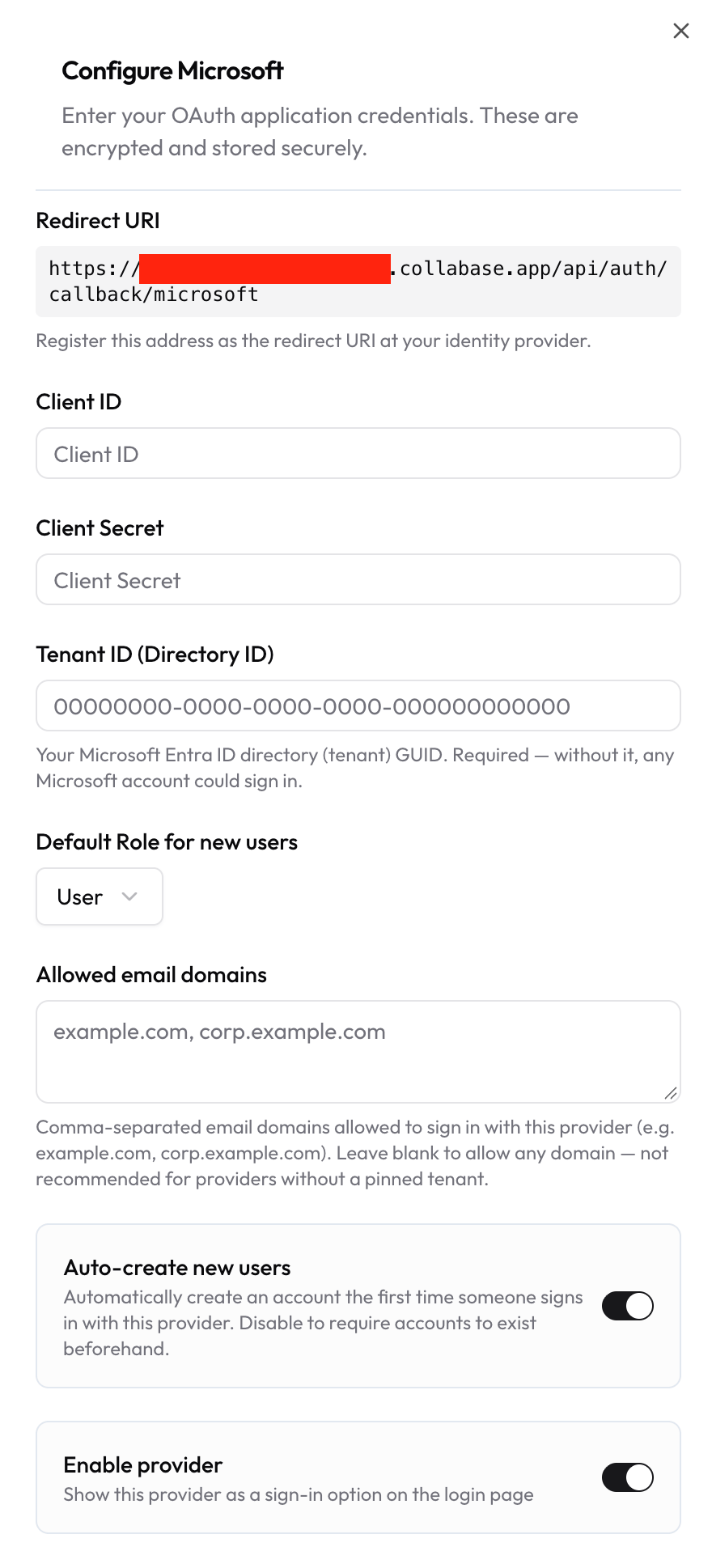
Collabase shows the same address as **Redirect URI** in the provider settings.
Under **Certificates & secrets**, select **New client secret**. Copy the **Value** immediately, because Entra shows it only once. Client secrets expire: note the date and replace the secret in Collabase before it passes.
On the **Overview** page, copy the **Application (client) ID** and the **Directory (tenant) ID**.
Open **Admin → Identity Providers → Microsoft** and enter **Client ID**, **Client Secret** and **Tenant ID (Directory ID)**. Enter the tenant as a GUID, not as a domain name. Collabase does not save the provider without it.
Set **Default Role for new users** to **User**. Switch **Auto-create new users** off when SCIM provisions your accounts. Set **Allowed email domains** to your company domains, see [Restricting sign-in by email domain](/docs/admin/identity-providers#restricting-sign-in-by-email-domain). Then switch on **Enable provider**.
 Continue at the [checkpoint of this phase](#checkpoint-sign-in).
Option B: SAML
In the Microsoft Entra admin center, browse to **Entra ID → Enterprise apps** and select **New application → Create your own application**. Name it "Collabase" and choose the option to integrate any other application you don't find in the gallery.
Open **Admin → Identity Providers**, add **SAML 2.0**, and keep the **Configure SAML 2.0** panel open. Under **Enter these values at your identity provider** it lists the **Assertion consumer service (ACS) URL** and the **Service provider metadata URL**.
In the application, open **Single sign-on**, select **SAML** and edit **Basic SAML Configuration**:
| Entra field | Value |
| - | - |
| **Identifier (Entity ID)** | `https://your-collabase-domain/api/auth/sso/saml2/sp/metadata?providerId=saml` |
| **Reply URL (Assertion Consumer Service URL)** | `https://your-collabase-domain/api/auth/sso/saml2/sp/acs/saml` |
| **Sign on URL** | `https://your-collabase-domain/auth/login` |
The entity ID is the metadata URL. You cannot change it in Collabase. After you save the provider, the expanded SAML row shows it as **Service provider entity ID**.
In **Attributes & Claims**, select **Edit** and add two claims with **Add new claim**. Leave **Namespace** empty:
| Claim name | Source attribute |
| - | - |
| `email` | `user.mail` or `user.userprincipalname`, the attribute you chose in [Phase 1](#settle-the-email-address) |
| `displayName` | `user.displayname` |
Collabase reads exactly these two names, see [Attributes Collabase reads](/docs/admin/saml-sso#attributes-collabase-reads). Entra sends its own claims under long names that begin with `http://schemas.xmlsoap.org/`, and Collabase does not read those. Without an `email` claim it falls back to the name identifier, which Entra fills with the user principal name by default. Without `displayName` the member's name becomes that same value.
In **SAML Certificates**, set **Signing Option** to **Sign SAML assertion** or **Sign SAML response and assertion**. Collabase refuses an assertion that is not signed.
Copy the **App Federation Metadata Url** from the **SAML Certificates** section into **Import from metadata URL** in Collabase and click **Import**. Collabase fills in **Identity provider entity ID**, **Single sign-on URL** and **Signing certificate**. Nothing is saved until you click **Save**. Only public HTTPS addresses work.
To enter the values by hand, take them from **Set up Collabase** in Entra: **Login URL** is the **Single sign-on URL**, **Microsoft Entra Identifier** is the **Identity provider entity ID**, and the **Certificate (Base64)** goes into **Signing certificate**.
Use the certificate of the enterprise application, not the one of the tenant. The tenant's federation metadata (the address without `appid=`) lists several certificates, and none of them signs the assertion of your application. If you paste one of those, every sign-in ends with "The response from your identity provider was not accepted". Compare the **Thumbprint** shown in **SAML Certificates** with the certificate you saved. They must be the same.
Set **Default Role for new users** to **User**. Switch **Auto-create new users** off when SCIM provisions your accounts. Switch on **Enable provider** and click **Save**. The login page now shows **Sign in with SSO (SAML)**. Every setting is explained under [SAML single sign-on](/docs/admin/saml-sso#configure-saml-in-collabase).
In the application, open **Users and groups** and assign the pilot group.
Sign-in has to start at Collabase. Collabase refuses a response that does not answer a sign-in it started, so a sign-in launched from the Microsoft portal or from My Apps does not work. Send your members to the Collabase login page.
The signing certificate in Entra expires. Note its date. When Entra issues a new one, paste both certificates into **Signing certificate** until the old one has expired, so sign-in keeps working during the change.
Checkpoint: sign-in
Open the Collabase login page in a private browser window and sign in with Microsoft as your own administrator. Collabase links your existing account by email address. You land in Collabase, and **Admin → Users** shows no second account for you.
If this fails, see [Sign-in problems](#sign-in-problems). If it works and you only want sign-in, continue with the [test in Phase 5](#phase-5-test-and-roll-out).
**Next:** [Phase 4, SCIM](#phase-4-scim).
Phase 4: SCIM
*Phase 4 of 5, about 25 minutes plus up to 40 minutes for the first sync. Previous: [Phase 3](#phase-3-sign-in). Next: [Phase 5, Test and roll out](#phase-5-test-and-roll-out).*
SCIM lets Entra create, update and deactivate accounts. It does not sign anybody in, so Phase 3 must be done first. The supported operations are listed under [User provisioning with SCIM](/docs/admin/user-provisioning).
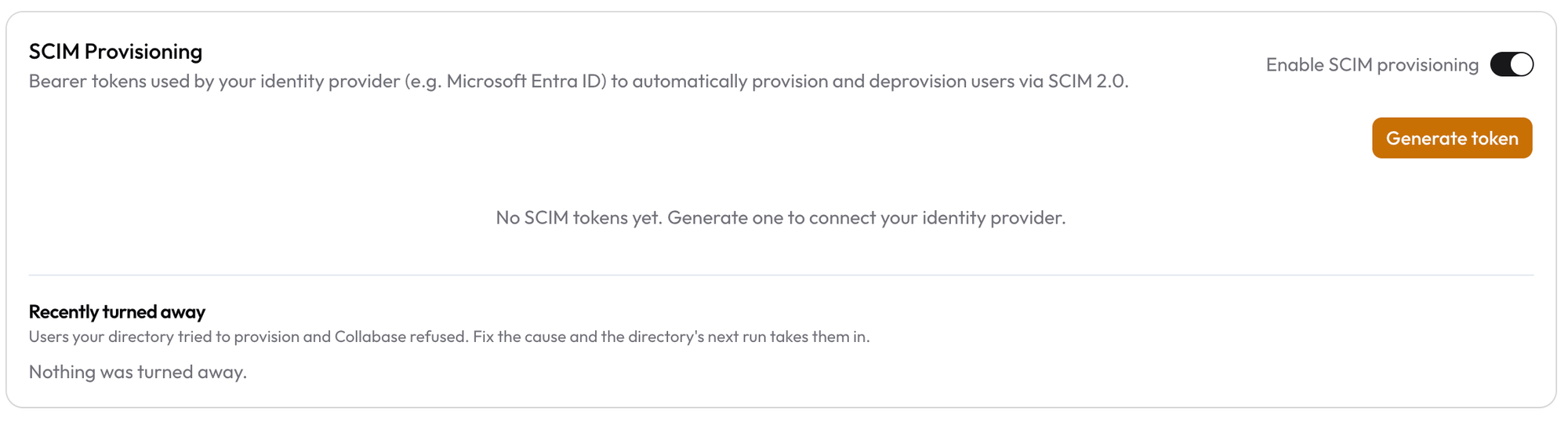
Open **Admin → Identity Providers**, scroll to **SCIM Provisioning** and switch on **Enable SCIM provisioning**. Requests are refused until this switch is on, even with a valid token.
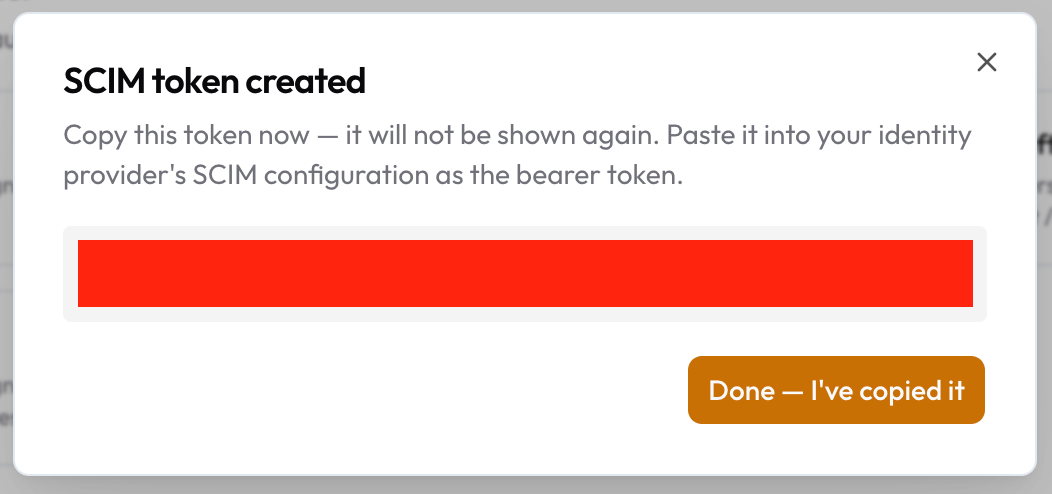
Click **Generate token** and copy it when **SCIM token created** appears. Collabase shows it only once. A token is valid for 365 days. Set a reminder to generate a new one before it expires, because the new token replaces the old one at once.
 Use the enterprise application from Phase 3 if you chose SAML. With OAuth, create one the same way: **Entra ID → Enterprise apps → New application → Create your own application**, with the option to integrate any other application. Open **Provisioning** and select **New configuration**.
Enter these values. If the portal asks for an authentication method, choose bearer token authentication.
| Entra field | Value |
| - | - |
| **Tenant URL** | `https://your-collabase-domain/api/scim/v2` |
| **Secret Token** | The token you copied |
Select **Test Connection**. When it succeeds, select **Create**. If it fails, see [SCIM problems](#scim-problems).
Open **Attribute mapping** and open the user mapping. Entra's default mapping sends many attributes, and a person who has no value for one of them can be turned away with HTTP 400. Start with the attributes that every person has, and delete the other rows. Collabase uses these attributes:
| Entra attribute | SCIM attribute | What Collabase does with it |
| - | - | - |
| `mail` | `emails[type eq "work"].value` | The primary address, or the first one, becomes the sign-in address. |
| `userPrincipalName` | `userName` | Used as the address when no email is sent. |
| `displayName`, `givenName`, `surname` | `displayName`, `name.givenName`, `name.familyName` | The name of the member. |
| `mailNickname` | `externalId` | Links the account to the person in Entra. Do not change this mapping after the first sync. |
| `Switch([IsSoftDeleted], …)` | `active` | Inactive deactivates the account, active reactivates it. |
Delete the rows for addresses (`streetAddress`, `city`, `postalCode`, `state`, `country`, `physicalDeliveryOfficeName`), for fax, mobile and other phone numbers, for `manager`, `employeeId` and `preferredLanguage`. Collabase does not read them. Delete `jobTitle` and `department` too, unless every person you assign has a value. Add them back when they are filled for everyone.
Make sure the address in `emails` is the one you settled in [Phase 1](#settle-the-email-address). Collabase never takes a role from the directory. Every account that SCIM creates starts as **User**.
Extend the mapping one attribute at a time. After each change, select **Provision on demand** for one person and look at the provisioning log. An attribute that is empty for a person is the usual reason for a failed creation.
Open **Users and groups** and assign the pilot group. Entra provisions only assigned members when the scope is **Sync only assigned users and groups**. Open the **Overview** page and select **Start provisioning**. The first cycle takes longer, later ones run about every 40 minutes.
Use the enterprise application from Phase 3 if you chose SAML. With OAuth, create one the same way: **Entra ID → Enterprise apps → New application → Create your own application**, with the option to integrate any other application. Open **Provisioning** and select **New configuration**.
Enter these values. If the portal asks for an authentication method, choose bearer token authentication.
| Entra field | Value |
| - | - |
| **Tenant URL** | `https://your-collabase-domain/api/scim/v2` |
| **Secret Token** | The token you copied |
Select **Test Connection**. When it succeeds, select **Create**. If it fails, see [SCIM problems](#scim-problems).
Open **Attribute mapping** and open the user mapping. Entra's default mapping sends many attributes, and a person who has no value for one of them can be turned away with HTTP 400. Start with the attributes that every person has, and delete the other rows. Collabase uses these attributes:
| Entra attribute | SCIM attribute | What Collabase does with it |
| - | - | - |
| `mail` | `emails[type eq "work"].value` | The primary address, or the first one, becomes the sign-in address. |
| `userPrincipalName` | `userName` | Used as the address when no email is sent. |
| `displayName`, `givenName`, `surname` | `displayName`, `name.givenName`, `name.familyName` | The name of the member. |
| `mailNickname` | `externalId` | Links the account to the person in Entra. Do not change this mapping after the first sync. |
| `Switch([IsSoftDeleted], …)` | `active` | Inactive deactivates the account, active reactivates it. |
Delete the rows for addresses (`streetAddress`, `city`, `postalCode`, `state`, `country`, `physicalDeliveryOfficeName`), for fax, mobile and other phone numbers, for `manager`, `employeeId` and `preferredLanguage`. Collabase does not read them. Delete `jobTitle` and `department` too, unless every person you assign has a value. Add them back when they are filled for everyone.
Make sure the address in `emails` is the one you settled in [Phase 1](#settle-the-email-address). Collabase never takes a role from the directory. Every account that SCIM creates starts as **User**.
Extend the mapping one attribute at a time. After each change, select **Provision on demand** for one person and look at the provisioning log. An attribute that is empty for a person is the usual reason for a failed creation.
Open **Users and groups** and assign the pilot group. Entra provisions only assigned members when the scope is **Sync only assigned users and groups**. Open the **Overview** page and select **Start provisioning**. The first cycle takes longer, later ones run about every 40 minutes.
 ### What happens to accounts
| Event in Entra | What happens in Collabase |
| - | - |
| A person is assigned | An account is created. |
| Name, title or department changes | The profile is updated. |
| A person is removed or deactivated | The account is deactivated and its API tokens are switched off. |
| A person is assigned again | The account is reactivated, if a licensed seat is free. |
| A person joins or leaves a group | The group membership follows. |
A deactivated account is anonymized after 30 days by default: the name and email address are removed, while pages, work items and comments stay and show the name followed by `(deleted)`. You change the period under **Anonymize locked accounts after** in the [security policies](/docs/admin/security-policies#locked-accounts). Reactivating the account before the date cancels the anonymization.
Groups that SCIM pushes become Collabase groups. You manage their members in Entra, not in Collabase, and you can still give them access to spaces. A group can have up to 1,000 members. More: [Supported group operations](/docs/admin/user-provisioning#supported-group-operations).
### What happens to accounts
| Event in Entra | What happens in Collabase |
| - | - |
| A person is assigned | An account is created. |
| Name, title or department changes | The profile is updated. |
| A person is removed or deactivated | The account is deactivated and its API tokens are switched off. |
| A person is assigned again | The account is reactivated, if a licensed seat is free. |
| A person joins or leaves a group | The group membership follows. |
A deactivated account is anonymized after 30 days by default: the name and email address are removed, while pages, work items and comments stay and show the name followed by `(deleted)`. You change the period under **Anonymize locked accounts after** in the [security policies](/docs/admin/security-policies#locked-accounts). Reactivating the account before the date cancels the anonymization.
Groups that SCIM pushes become Collabase groups. You manage their members in Entra, not in Collabase, and you can still give them access to spaces. A group can have up to 1,000 members. More: [Supported group operations](/docs/admin/user-provisioning#supported-group-operations).
Existing accounts
SCIM never claims an account by email address. If Entra sends a person whose address already belongs to a Collabase account that SCIM did not create, Collabase turns the person away with a conflict. The reason shows under **Recently turned away** in the **SCIM Provisioning** card, together with the last ten rejected people. To bring an existing member under SCIM, change the email address of one of the two accounts and let Entra try again. More: [How existing accounts are handled](/docs/admin/user-provisioning#how-existing-accounts-are-handled).
### Checkpoint: SCIM
In Entra, select **Provision on demand** for one person of the pilot group. In Collabase, **Admin → Users** now shows the account, and the **Identity** column shows where it came from. If the person is missing, look under **Recently turned away** and in [SCIM problems](#scim-problems).
**Next:** [Phase 5, Test and roll out](#phase-5-test-and-roll-out).
Phase 5: Test and roll out
*Phase 5 of 5, about 30 minutes. Previous: [Phase 4](#phase-4-scim). Next: [Keep it running](#keep-it-running).*
Open the Collabase login page and sign in with Microsoft. Your existing administrator account is linked by email address. Check that you land in Collabase and that no second account for you appears under **Admin → Users**.
Let a person of the pilot group sign in with Microsoft. Check **Admin → Users**: the person must have exactly one account. If you added SCIM, this account was created by SCIM before the first sign-in. This is the moment where a mismatch of email addresses shows, see [Phase 1](#settle-the-email-address).
This step needs SCIM. Open the pushed group under **Admin → Users** and give it access to a space. The pilot member sees the space after the next sign-in.
This step needs SCIM. Remove the pilot member from the pilot group in Entra and provision on demand again. The account is deactivated. A sign-in is refused with the message that the account has been disabled.
Assign the groups that should have access. Watch **Recently turned away** and the provisioning logs in Entra during the first cycles. If many people are turned away, check the [existing accounts](#existing-accounts) first.
**Checkpoint.** A pilot member signed in, has one account, and loses access when removed. Your setup is complete.
**Next:** [Keep it running](#keep-it-running).
Keep it running
Three secrets expire. Put the dates in your calendar now.
| What | Where it expires | What to do |
| - | - | - |
| **OAuth client secret** | In Entra, on the app registration | Create a new secret and enter it in the Microsoft provider settings before the date. |
| **SAML signing certificate** | In Entra, in **SAML Certificates** | Paste both certificates into **Signing certificate** until the old one has expired. To replace a certificate that does not match, create a new one in Entra with **New Certificate**, select **Make certificate active** and import it again. |
| **SCIM token** | After 365 days | Generate a new token and enter it in Entra. The old one stops working at once. |
Also review **Recently turned away** now and then, and keep the second administrator with a password. Both stay useful long after the rollout.
Troubleshooting
Sign-in problems
| What the member sees | Cause | What to do |
| - | - | - |
| This sign-in could not be matched to a Collabase account. | No single active account has the email address of the sign-in. Or **Auto-create new users** is off, the account is a guest, or two accounts share the address. | Compare the address in Collabase with the one Entra sends at sign-in. Make them identical. |
| Your email domain is not permitted to sign in with this provider. | The address is outside **Allowed email domains**. | Add the domain or correct the address. |
| No licence seat is free for a new account. | All licensed seats are in use. | Free a seat or extend the licence. |
| The response from your identity provider was not accepted. | The saved signing certificate is not the one of the application, the assertion is unsigned, was not requested by Collabase, or the **Identifier (Entity ID)** in Entra differs from the metadata URL. | Compare the **Thumbprint** in **SAML Certificates** with the saved certificate and import it again if they differ. If they match, check the signing option, the identifier, and that the member started at the Collabase login page. |
| Your account has been disabled. | The account is deactivated, by SCIM or by an administrator. | Assign the person again in Entra or release the account in **Admin → Users**. |
More causes and answers: [SAML single sign-on](/docs/admin/saml-sso#troubleshooting).
SCIM problems
| What you see in Entra | Cause | What to do |
| - | - | - |
| **Test Connection** fails with "SCIM provisioning is disabled for this instance". | The switch is off. | Switch on **Enable SCIM provisioning**. |
| Requests fail with "The Enterprise licence has expired". | The licence has expired. | Renew it. Provisioning resumes on its own. |
| Requests fail with "Not found". | The instance has no Enterprise licence. | Activate an Enterprise licence. |
| Requests are refused as unauthorized. | The token is wrong, revoked or older than 365 days. | Generate a new token and enter it in Entra. |
| A person is not provisioned and shows as turned away with an email conflict. | An account with that address exists and is not linked. | See [Existing accounts](#existing-accounts). |
| A person is not provisioned and shows as turned away with no seat. | No licensed seat is free. | Free a seat. The next provisioning cycle takes the person in. |
| Creating a person fails with HTTP 400 and "Validation error" (`invalidValue`), while groups work. | The request contains an attribute that is empty for that person, often an address, a phone number or the manager. | Delete the rows for these attributes from the user mapping, see [Reduce the attribute mapping](#phase-4-scim), then restart provisioning. |
| A group is created, but the log shows `UpdateForUnconnectedEntry`. | The members of the group were not created, so Entra has nothing to link them to. | Fix the creation of the persons first. The group follows in the next cycle. |
More causes and answers: [User provisioning with SCIM](/docs/admin/user-provisioning#troubleshooting).
## Related pages
Every SAML setting, the account matching and the troubleshooting.
Supported operations for accounts and groups.
OAuth, LDAP and SCIM in one place.
Sign-in limits, SSO bypass and locked accounts.
This documentation is built and hosted on [Mintlify](https://mintlify.com), a developer documentation platform.