> ## Documentation Index
> Fetch the complete documentation index at: https://collabase.ch/docs/llms.txt
> Use this file to discover all available pages before exploring further.
> ## Agent Instructions
> Collabase documentation. Interface labels are quoted in English, as they appear in the product.
> Features marked Enterprise need the Collabase Enterprise Edition licence.
# SAML single sign-on
> Let members sign in to Collabase through your SAML 2.0 identity provider: values for your provider, settings in Collabase, account matching and fixes.
export const role_0 = "System administrator"
export const edition_0 = "Collabase Enterprise Edition"
Security Assertion Markup Language (SAML) is an XML-based standard that lets an identity provider tell Collabase who has signed in. Members sign in once at your identity provider and reach Collabase without a second password.
Collabase supports SAML 2.0 single sign-on (SSO) that starts at Collabase. A member clicks **Sign in with SSO (SAML)** on the login page, signs in at your identity provider and returns to Collabase signed in.
**Who can do this?**
| | |
| - | - |
| **Role** | {role_0} |
| **Edition** | {edition_0} |
SAML only handles authentication. It does not decide what a member may see. Give access through groups and space permissions, see [Permissions](/docs/concepts/permissions). A new account starts with the default role you choose in the SAML settings.
## Supported identity providers
Collabase works with identity providers that implement the SAML 2.0 Web Browser SSO profile, for example Microsoft Entra ID and Okta. Collabase sends the sign-in request to your provider with an HTTP redirect and receives the response at its ACS URL.
For a step-by-step setup with Microsoft, see [IAM with Microsoft Entra ID](/docs/admin/iam-microsoft-entra).
## Before you begin
* Have an active Enterprise licence. Identity providers are part of Collabase Enterprise Edition.
* Reach Collabase over HTTPS, and make sure the base URL Collabase is configured with is the HTTPS one.
* Keep one administrator who signs in with email and password. If your identity provider is unreachable or misconfigured, this account gets you back in.
* Decide which attribute of your identity provider is the email address of a member, and use the same one for SCIM if you provision accounts.
## How sign-in works
* The member opens the Collabase login page and clicks **Sign in with SSO (SAML)**.
* Collabase sends the member to the single sign-on URL of your identity provider.
* The identity provider signs the member in and sends a signed response to the ACS URL of Collabase.
* Collabase checks the signature, the audience, the validity period and that the response answers a sign-in it started. Then it finds the account.
The diagram shows the same flow as a sequence.
```mermaid theme={"dark"}
sequenceDiagram
participant M as Member
participant C as Collabase
participant I as Identity provider
M->>C: Clicks Sign in with SSO (SAML)
C->>M: Redirects to the single sign-on URL
M->>I: Signs in
I->>C: Sends a signed response to the ACS URL
C->>C: Checks signature, audience, validity and the request
C->>M: Signs the member in
```
Sign-in always starts at Collabase. A sign-in that starts in the portal of your identity provider, for example from a tile in My Apps, is refused.
## Set up your identity provider
The exact process varies by provider. You usually need to:
* Define an application in your identity provider.
* Give it the values from the table below.
* Send the two attributes from the second table with the sign-in.
* Sign the SAML assertion.
* Assign the people who may sign in.
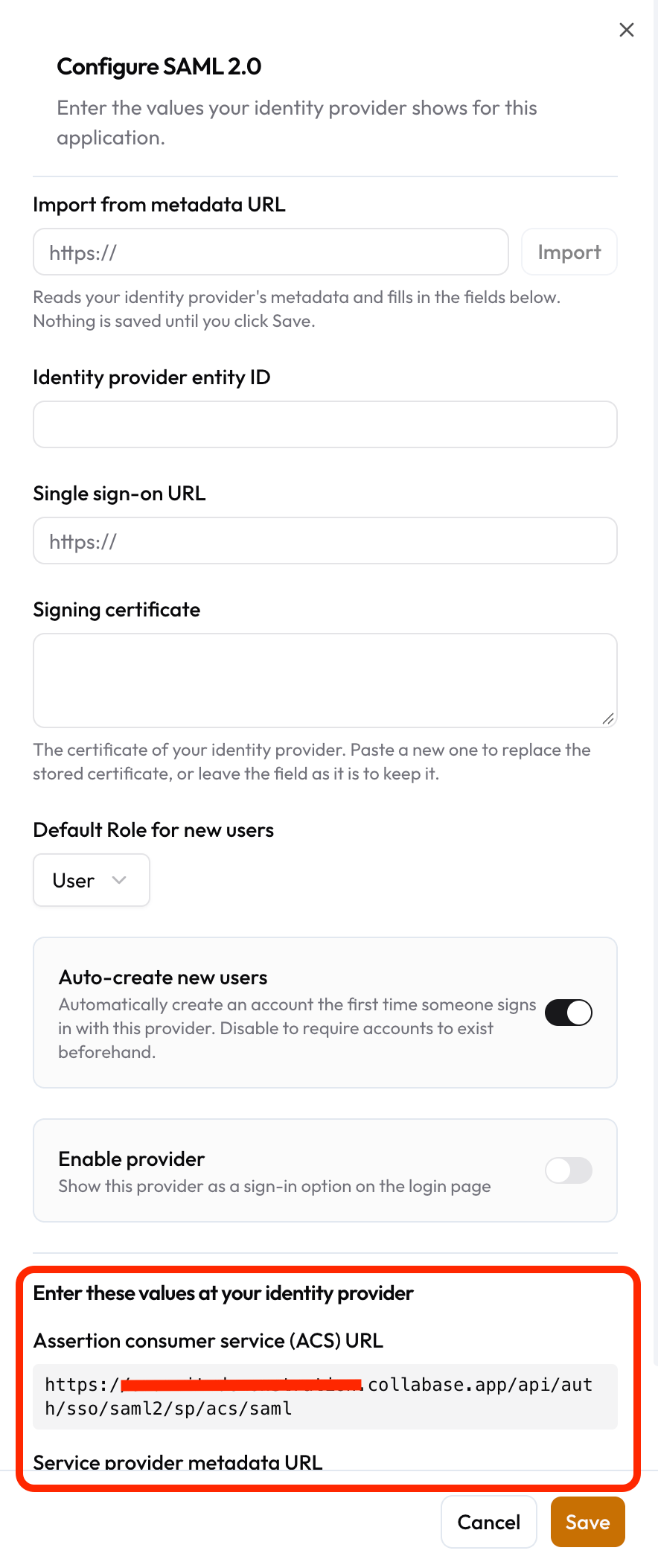
Open **Admin → Identity Providers**, add **SAML 2.0** and keep the **Configure SAML 2.0** panel open. Under **Enter these values at your identity provider** Collabase lists what your provider needs:
| Value | Format |
| - | - |
| **Assertion consumer service (ACS) URL** | `https://your-collabase-domain/api/auth/sso/saml2/sp/acs/saml` |
| **Service provider entity ID** (also called audience) | `https://your-collabase-domain/api/auth/sso/saml2/sp/metadata?providerId=saml`. This is the metadata URL. You cannot change it. |
| **Service provider metadata URL** | `https://your-collabase-domain/api/auth/sso/saml2/sp/metadata?providerId=saml` |
Most providers can import the whole configuration from the metadata URL. The audience of the response must be the entity ID above, or Collabase refuses it.
Attributes Collabase reads
| Attribute | What Collabase does with it |
| - | - |
| `email` | The address Collabase uses to find the account. Without this attribute, Collabase uses the name identifier of the response as the address. |
| `displayName` | The name of the member for a new account. Without it, Collabase uses the name identifier. |
| `givenName` and `surname` | Optional. When your provider sends them under these exact names, together they form the name and take precedence over `displayName`. |
Collabase reads the attributes by these exact names. Providers that send claims under long names, such as Microsoft Entra ID by default, need an additional claim with the plain name.
Collabase refuses a response whose assertion is not signed. Set your provider to sign the assertion, or the assertion and the response.
Open **Admin → Identity Providers**, add **SAML 2.0** and open **Configure SAML 2.0**.
Enter the values from the table below, or paste the metadata address of your provider under **Import from metadata URL** and click **Import**.
Set **Default Role for new users** and **Auto-create new users**.
Switch on **Enable provider** and click **Save**. The login page now shows **Sign in with SSO (SAML)**.
 | Setting | Details |
| - | - |
| **Import from metadata URL** | Reads the metadata of your identity provider and fills in the three fields below. Nothing is saved until you click **Save**. Only public HTTPS addresses work. |
| **Identity provider entity ID** | The identifier of your provider, sometimes called issuer or Entity ID. Collabase accepts sign-ins only from this provider, which ties sign-in to your organization. |
| **Single sign-on URL** | The address your provider listens on. Collabase sends members there to sign in. |
| **Signing certificate** | The public certificate of your provider in PEM format, starting with `-----BEGIN CERTIFICATE-----`. Collabase checks every signature with it. Paste a new certificate to replace the stored one, or leave the field as it is to keep it. |
| **Default Role for new users** | The role of an account that Collabase creates at the first sign-in: **User** or **Admin**. Keep **User**. |
| **Auto-create new users** | On: Collabase creates an account at the first sign-in when none exists. Off: the account must exist beforehand, for example through SCIM or because an administrator created it. |
| **Enable provider** | Shows the sign-in button on the login page. |
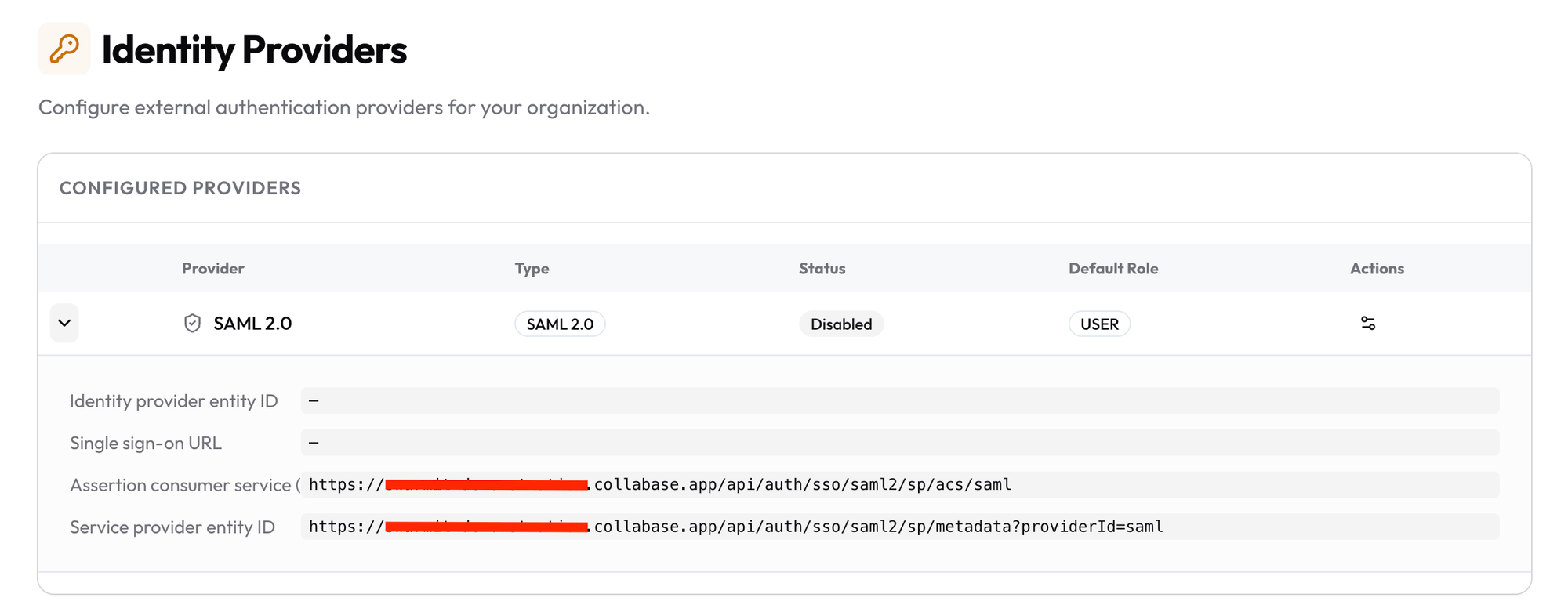
After you save, the expanded SAML row shows the identity provider entity ID, the single sign-on URL, the ACS URL and the service provider entity ID.
| Setting | Details |
| - | - |
| **Import from metadata URL** | Reads the metadata of your identity provider and fills in the three fields below. Nothing is saved until you click **Save**. Only public HTTPS addresses work. |
| **Identity provider entity ID** | The identifier of your provider, sometimes called issuer or Entity ID. Collabase accepts sign-ins only from this provider, which ties sign-in to your organization. |
| **Single sign-on URL** | The address your provider listens on. Collabase sends members there to sign in. |
| **Signing certificate** | The public certificate of your provider in PEM format, starting with `-----BEGIN CERTIFICATE-----`. Collabase checks every signature with it. Paste a new certificate to replace the stored one, or leave the field as it is to keep it. |
| **Default Role for new users** | The role of an account that Collabase creates at the first sign-in: **User** or **Admin**. Keep **User**. |
| **Auto-create new users** | On: Collabase creates an account at the first sign-in when none exists. Off: the account must exist beforehand, for example through SCIM or because an administrator created it. |
| **Enable provider** | Shows the sign-in button on the login page. |
After you save, the expanded SAML row shows the identity provider entity ID, the single sign-on URL, the ACS URL and the service provider entity ID.
First sign-in and account matching
Collabase matches a sign-in to an account by **email address**. At the first sign-in it decides like this:
| Situation | Result |
| - | - |
| Exactly one active account has the email address | Collabase links it to the identity. Later sign-ins are recognized by the identity of the provider. |
| No account has the address and **Auto-create new users** is on | Collabase creates an account with the default role, if a licensed seat is free. |
| No account has the address and **Auto-create new users** is off | The sign-in is refused. |
| More than one account has the address | The sign-in is refused. |
| The account is deactivated | The sign-in is refused. |
| The account is a guest | The sign-in is refused. A guest cannot be linked to an identity provider. |
When SCIM provisions your accounts, switch **Auto-create new users** off and send the same email address through SCIM and at sign-in. A mismatch then stops with a clear message instead of creating a second account.
## Best practices
* Use HTTPS on both sides, for Collabase and for your identity provider.
* Keep the clocks in sync. A SAML response is valid for a short time. Collabase accepts a clock difference of five minutes between your server and your provider. Synchronize both with a time server.
* Note when the signing certificate of your provider expires. When it issues a new one, paste both certificates into **Signing certificate** until the old one has expired, so sign-in keeps working during the change.
* Send your members to the Collabase login page, not to the portal of your identity provider.
* Keep one local administrator. The email and password login stays available at `/auth/login`.
Troubleshooting
| What the member sees | Cause | What to do |
| - | - | - |
| This sign-in could not be matched to a Collabase account. | No single active account has the email address of the sign-in, **Auto-create new users** is off, the account is a guest, or two accounts share the address. | Compare the address in Collabase with the one your provider sends. Make them identical. |
| The response from your identity provider was not accepted. | The saved signing certificate is not the one that signs the assertion, the assertion is not signed, the audience differs from the service provider entity ID, the response is outside its validity period, or the sign-in did not start at Collabase. | Compare the fingerprint of the certificate in your provider with the saved one and paste it again if they differ. Then check the signing option, the identifier in your provider, the clocks, and that the member started at the Collabase login page. |
| Your account has been disabled. | The account is deactivated, by SCIM or by an administrator. | Release the account in **Admin → Users**, or assign the person again in your provider. |
| No licence seat is free for a new account. | All licensed seats are in use. | Free a seat or extend the licence. |
| The member lands on an error page of your provider. | The problem is on the provider side, for example a person who is not assigned to the application. | Use the support and tools of your identity provider. |
The full setup for Microsoft Entra ID, with sign-in and SCIM.
Create, update and deactivate accounts from your identity provider.
OAuth, LDAP and SCIM in one place.
Sign-in limits and account lifecycle.
This documentation is built and hosted on [Mintlify](https://mintlify.com), a developer documentation platform.