

SAML only handles authentication. It does not decide what a member may see. Give access through groups and space permissions, see Permissions. A new account starts with the default role you choose in the SAML settings.
Supported identity providers
Collabase works with identity providers that implement the SAML 2.0 Web Browser SSO profile, for example Microsoft Entra ID and Okta. Collabase sends the sign-in request to your provider with an HTTP redirect and receives the response at its ACS URL. For a step-by-step setup with Microsoft, see IAM with Microsoft Entra ID.Before you begin
- Have an active Enterprise licence. Identity providers are part of Collabase Enterprise Edition.
- Reach Collabase over HTTPS, and make sure the base URL Collabase is configured with is the HTTPS one.
- Keep one administrator who signs in with email and password. If your identity provider is unreachable or misconfigured, this account gets you back in.
- Decide which attribute of your identity provider is the email address of a member, and use the same one for SCIM if you provision accounts.
How sign-in works
- The member opens the Collabase login page and clicks Sign in with SSO (SAML).
- Collabase sends the member to the single sign-on URL of your identity provider.
- The identity provider signs the member in and sends a signed response to the ACS URL of Collabase.
- Collabase checks the signature, the audience, the validity period and that the response answers a sign-in it started. Then it finds the account.
Set up your identity provider
The exact process varies by provider. You usually need to:- Define an application in your identity provider.
- Give it the values from the table below.
- Send the two attributes from the second table with the sign-in.
- Sign the SAML assertion.
- Assign the people who may sign in.
Most providers can import the whole configuration from the metadata URL. The audience of the response must be the entity ID above, or Collabase refuses it.
Attributes Collabase reads
Collabase reads the attributes by these exact names. Providers that send claims under long names, such as Microsoft Entra ID by default, need an additional claim with the plain name.
Configure SAML in Collabase
1
Open the SAML settings
Open Admin → Identity Providers, add SAML 2.0 and open Configure SAML 2.0.
2
Enter the values of your identity provider
Enter the values from the table below, or paste the metadata address of your provider under Import from metadata URL and click Import.
3
Choose the behavior
Set Default Role for new users and Auto-create new users.
4
Enable and save
Switch on Enable provider and click Save. The login page now shows Sign in with SSO (SAML).
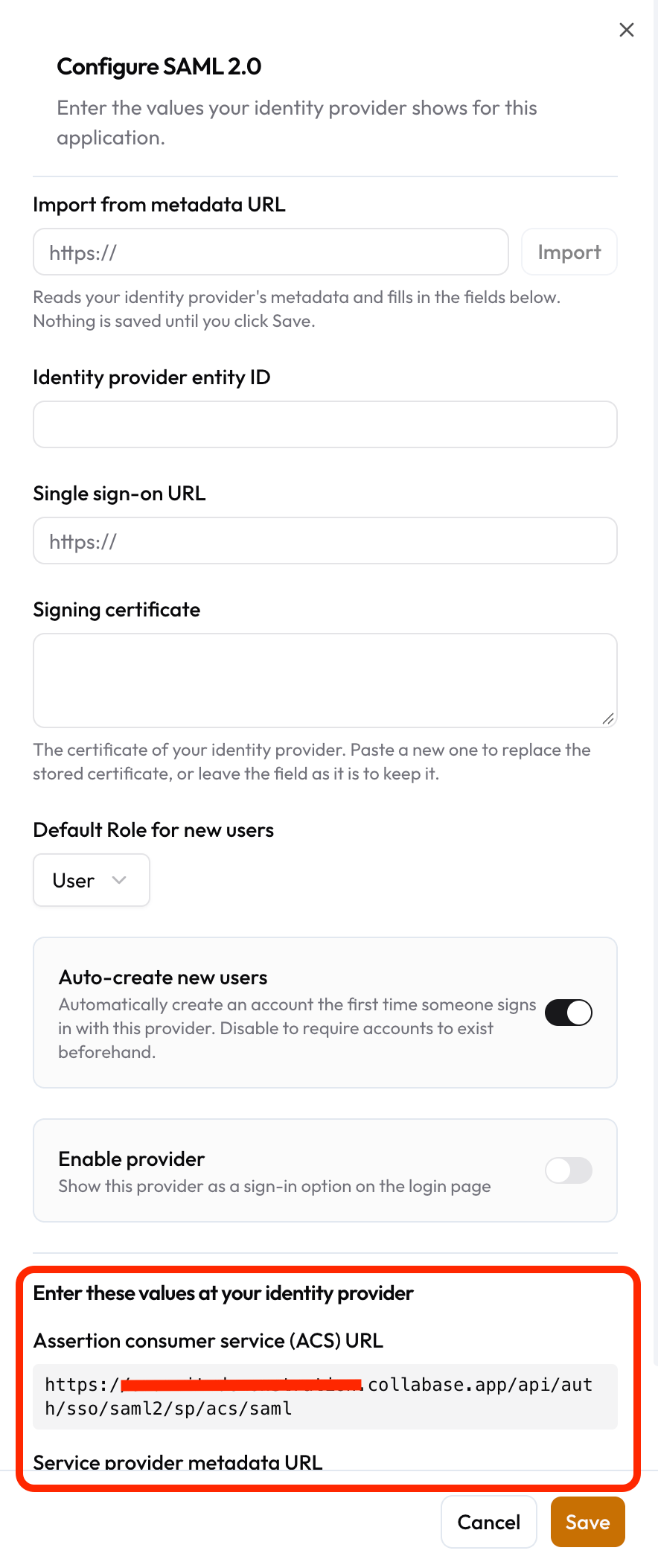
The Configure SAML 2.0 panel. The values at the bottom are the ones your identity provider needs.
After you save, the expanded SAML row shows the identity provider entity ID, the single sign-on URL, the ACS URL and the service provider entity ID.
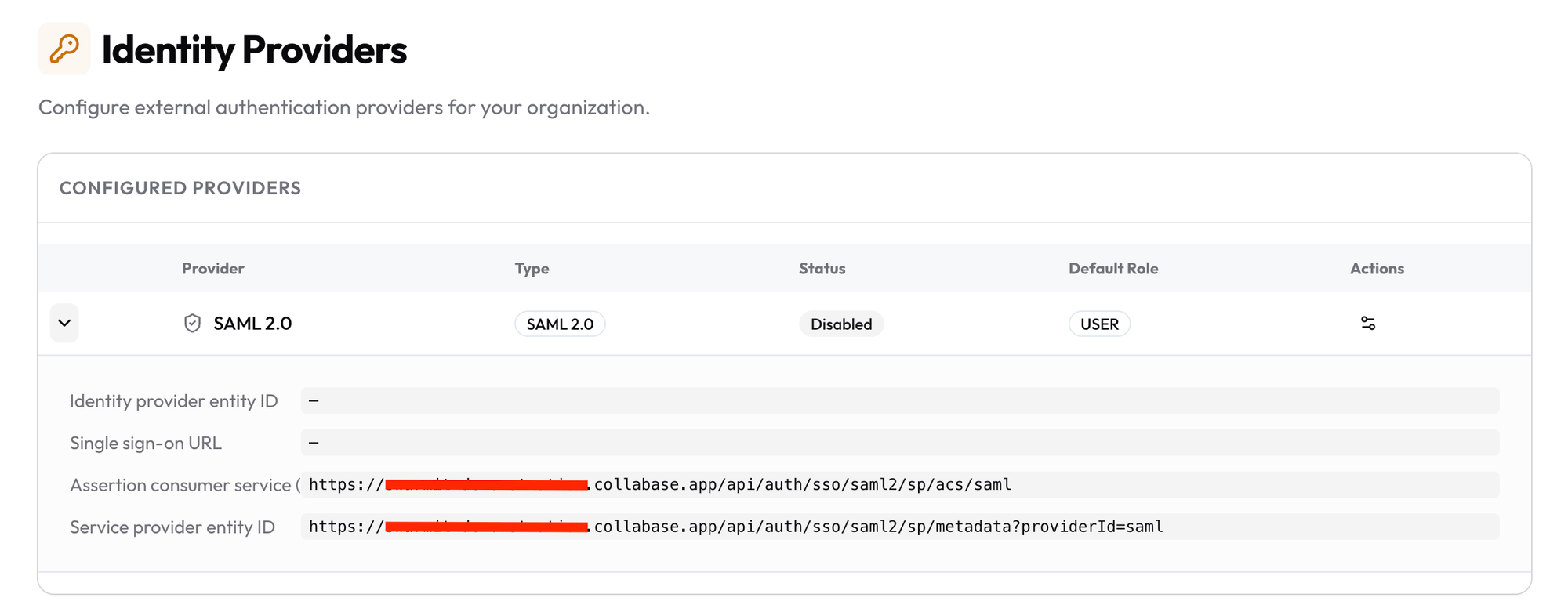
The expanded SAML 2.0 row. The service provider entity ID is the value for the identifier at your provider.
First sign-in and account matching
Collabase matches a sign-in to an account by email address. At the first sign-in it decides like this:
When SCIM provisions your accounts, switch Auto-create new users off and send the same email address through SCIM and at sign-in. A mismatch then stops with a clear message instead of creating a second account.
Best practices
- Use HTTPS on both sides, for Collabase and for your identity provider.
- Keep the clocks in sync. A SAML response is valid for a short time. Collabase accepts a clock difference of five minutes between your server and your provider. Synchronize both with a time server.
- Note when the signing certificate of your provider expires. When it issues a new one, paste both certificates into Signing certificate until the old one has expired, so sign-in keeps working during the change.
- Send your members to the Collabase login page, not to the portal of your identity provider.
- Keep one local administrator. The email and password login stays available at
/auth/login.
Troubleshooting
IAM with Microsoft Entra ID
The full setup for Microsoft Entra ID, with sign-in and SCIM.
User provisioning with SCIM
Create, update and deactivate accounts from your identity provider.
Identity providers
OAuth, LDAP and SCIM in one place.
Security policies
Sign-in limits and account lifecycle.