
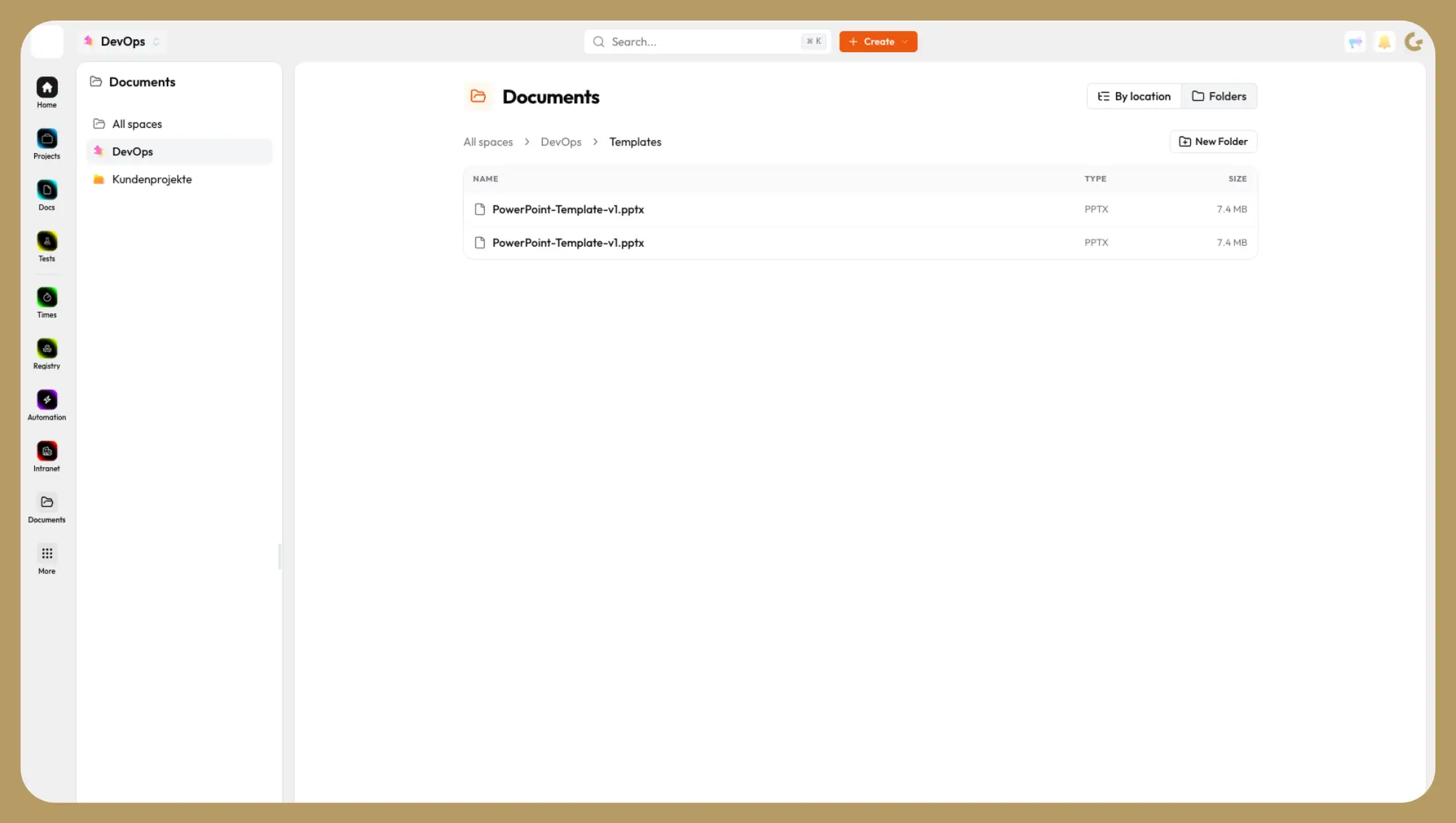
In most teams, documents are not documents but attachments. The contract hangs off a page, the screenshot off a task, the analysis off a piece of project documentation. As long as you remember where you put something, that works. After a year and three project changes, nobody remembers. The usual reaction is a second file store with its own folder structure, and that is where the real problem begins. There is another way: every attachment visible in one place, organised in your own folders, without any file changing its location or its permissions.
In this post
- Why attachments get lost in teams
- Why a second file store moves the problem instead of solving it
- How to organise documents without moving them
- How permissions stay correct automatically
- What Collabase AI adds from the fourth quarter of 2026
- Limits you should know about
Why do attachments get lost in teams?
Files are created where the work happens, and that is rarely a folder. They land on the page being written or on the task currently in progress. At the moment of upload that is the right decision, because the file keeps its context.
The cost shows up later. Attachments sit in a side area that many readers never open. Anyone looking for a file has to remember which page or which task it hangs off. And once the person who uploaded it has left the team, the search starts from zero.
Three patterns show up in almost every team:
- The same file exists several times, because nobody found the first version.
- Important documents hang off pages that have since been archived.
- New team members ask for files that have long existed, because they do not know where they are kept.
Why does a second file store not solve the problem?
The obvious answer is a separate document management system with a tidy folder structure. In practice it brings three new problems.
Two versions of the same file. The original stays where the work happened, the copy sits in the folder. After the first correction nobody knows which one is valid.
Two worlds of permissions. The file store brings its own access rights, which have to be maintained alongside the existing ones. Within a few months they drift apart, and usually in the wrong direction: the folder is more open than the page the file came from.
Lost context. A contract on the page that documents the decision explains itself. The same contract in a folder called «Contracts 2026» needs an explanation that nobody supplies.
So the folder structure is not the problem. The problem is that it usually requires a copy and a second permission system.
How do you organise documents without moving them?
This is exactly where the Collabase Documents app comes in. It shows every attachment from pages in Docs and from work items in Projects that you are allowed to open, across all your spaces. The file stays where it is.
Two views show the same set of files:
| View | Structure | What for |
|---|---|---|
| By location | Space, then Docs or Projects, then page or project, work item, files | Finding files by their origin. Follows your space structure. |
| Folders | Space, folder, subfolder, files | Filing by your own logic, for example «Contracts» or «Onboarding». |
A folder here is a view, not a copy. The file stays attached to its page or its task, keeps its permissions, and Open page or Open work item takes you straight back to where it was created. Both at once: your own order and the original context.
In addition, the Attachments macro brings the files into the page itself. In edit mode you insert it via /attachments, and the list fills when you save. After that, uploading also works in read mode by click or drag and drop. PDF, images, video, audio and Office files open in a preview without you having to download them. Anyone maintaining an overview page can put the related documents exactly where they are read.
The full description, including every action, is in the documentation on Documents and attachments.
How do permissions stay correct?
This is where separate file stores fail, and here the answer is simple: there is no second set of permissions.
The Documents app introduces not a single new permission. It uses the ones you already maintain for pages, projects and spaces. A file is visible to whoever may open the page or work item it is attached to. For a page, that means read access in the space, unless the page is restricted to a group you do not belong to. For a work item, read access in the space and access to the project, with private projects requiring membership.
Filing into a folder changes none of this.
Folders themselves are handled with the same consistency. A folder only appears to you if it or one of its subfolders contains at least one file you are allowed to see. A folder name therefore never reveals the existence of a document that is closed to you. Whoever creates a folder sees it too, as long as it is empty.
Anyone with the Upload attachments permission in the space may organise. Everyone else browses the structure and opens files, but changes nothing. And deleting a folder loses no files: its contents and subfolders move up one level, after a confirmation prompt.
What Collabase AI adds from the fourth quarter of 2026
A folder structure helps you find things again when you know what you are looking for. It does not help when you only know what it was about.
From the fourth quarter of 2026, Collabase AI therefore accesses the content of attachments via retrieval augmented generation (RAG) and also knows the folder structure as context. In practice that means two things. You can ask about the content of a document instead of its name, and you get the file together with the relevant passage. And when tidying up, Collabase AI suggests which files belong together by content and which existing folder they fit into.
The same rule applies as everywhere else on the platform: only what you are allowed to see is taken into account. The folder structure is orientation for the analysis, not a way around the permissions.
Which limits should you know about?
So that nothing comes as a surprise during roll-out:
- 25 MB per file, in any format. That is enough for contracts, minutes and analyses, not for raw video footage or large CAD files.
- Folders always belong to exactly one space, and a file can only be filed into folders of its own space. There are no cross-space folders. This follows from the permission model and is a deliberate limit.
- The By location view mirrors your space structure and cannot be rearranged. Your own order is built in the folder view.
Frequently asked questions
Does a folder move the file away from its page?
No. The file stays where it is attached. The folder only changes where it appears in the folder view.
Do I have to maintain permissions for the document store separately?
No. There are no separate permissions. Those of pages, projects and spaces are used.
Can someone tell from a folder name that a document exists that is closed to them?
No. A folder is only shown if it or a subfolder contains at least one file you are allowed to see.
What happens to the contents when a folder is deleted?
Files and subfolders move up one level. Only the folder is deleted.
Does the AI help with finding documents?
From the fourth quarter of 2026, Collabase AI accesses the content of attachments and knows the folder structure as context. That lets you ask about the content instead of the file name, and you get suggestions when filing. Only what you are allowed to see counts.
What to do next
- Pin Documents. Open it via More at the bottom of the sidebar and pin it with a right-click.
- Look at what you have. Go through your spaces in the By location view. Within a few minutes it shows where files have piled up.
- Start with two folders. Per space, create the two or three categories you actually search for. Less structure is easier to maintain, the rest grows by itself.
- Use the macro where readers expect files. On overview pages, in minutes, on onboarding pages.
If you want to replace your existing file store, it is best to start with a clearly scoped use case. Get in touch for a proof of concept.
Last reviewed: September 18, 2026